
Orchestrator
Palette:
Orchestrator: Toggle Dock,Orchestrator: New Workspace,Orchestrator: Projects,Orchestrator: Machines,Orchestrator: Import sessions,Orchestrator: Jump to Attention· Menu: View → Orchestrator Dock · Key:Alt+Omoves focus to and from the dock
The Orchestrator runs many pieces of work side by side in one editor. Each task gets its own workspace, usually on its own git worktree and branch, with its own tabs, splits, terminals and, if you want one, a coding agent such as Claude Code or Codex. Workspaces live in Fresh's shared background editor (see Daemon Mode), so an agent keeps working while you are in another workspace, or after you close the terminal.
The dock is the column on the left that lists your workspaces. Pick one to switch to it; the editor around you changes to that workspace's files and terminals.
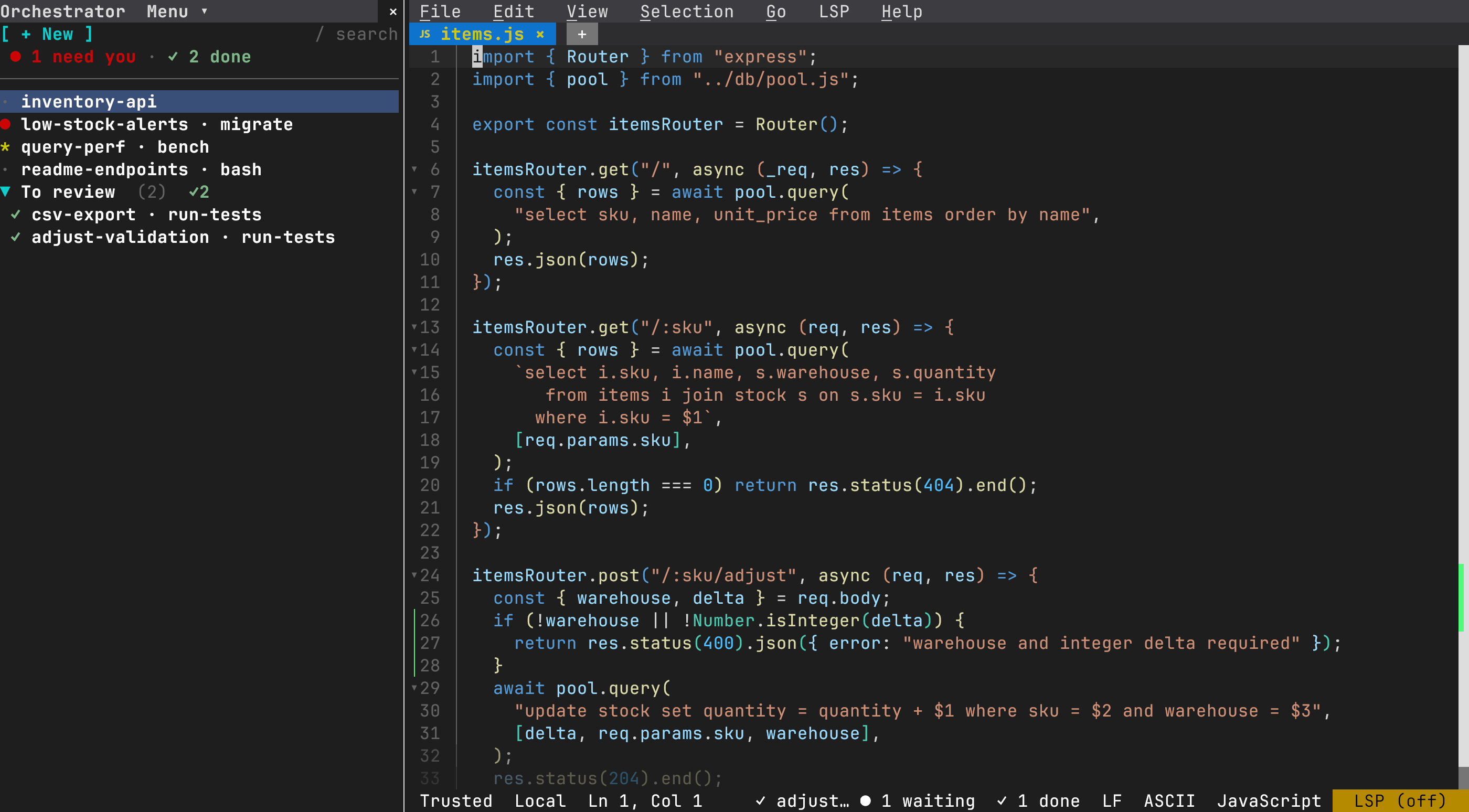
The dock
Open or close it from View → Orchestrator Dock, with Orchestrator: Toggle Dock, or with the dock's ×. Alt+O moves the keyboard into the dock and back out again, opening it if it is hidden. In the dock, ↑ and ↓ switch workspaces as you move.
Each row shows the workspace's state at its right edge, in one column down the dock, so you can tell at a glance where you are needed. A remote workspace's machine (⇅ SSH, ⎈ Kubernetes, ⬢ dev container) is shown just to its left, with the git summary (↑2 +14) before both:
| Mark | Meaning |
|---|---|
| ● | The agent is waiting on you (a question or a permission prompt) |
| ✓ | It finished work you haven't looked at yet |
| * | It is working |
| (blank) | Idle |
| ! | Creating it failed; the row says why and offers Retry |
| (blank) | A worktree on disk with no workspace open yet (shown with All worktrees) |
When a background workspace needs you, the status bar says so. Orchestrator: Jump to Attention takes you to it, and Orchestrator: Jump Back returns you to where you were.
The dock's Menu ▾ holds the rest:
- View: Compact (the default) shows one line per workspace; Cards shows a few lines each, with branch, changes and pull request status.
- Group: Folders (the default) lists workspaces in your folders. By date lists them under Today, This week (since Monday) and Older, by when you last worked in each: typed into one of its files or its terminal, or created it. Switching to a workspace or reading in it doesn't count, and neither does an agent working there. Workspaces you have never typed in come last, under Older. Pinned workspaces stay on top either way.
- Show: Empty workspaces and All worktrees (worktrees on disk that have no workspace open yet) can be shown or hidden.
- Project: limit the dock to one project.
- Create and Manage: new folders, Machines and Import sessions, described below.
Click / search (or press /) to filter the dock by name.
Folders
Folders group workspaces however you like: by feature, by customer, by "done, to review". Create one from Menu ▾ → New folder…, then file workspaces into it by dragging them, with Move to Folder… from a row's menu (right-click it, or press F2 on the highlighted row), or with the Orchestrator: Move to Folder… command. Folders can be nested, renamed and deleted from their own right-click menu. The arrangement is saved and survives restarts.
Hovering a row shows ⋯ where its status was; click it for the same menu. The same row menu has Rename… for a workspace. Until you rename it, a workspace names itself after its terminal's title.
Pin to top in a row's menu lists the workspace under a Pinned heading at the top of the dock, wherever it is filed; Unpin puts it back. Pins survive restarts.
Starting a task
Click + New at the top of the dock, or run Orchestrator: New Workspace, to open the New Workspace dialog. Fill in, top to bottom:
- Agent: the coding agent to start, a plain terminal, or a command of your own.
- Prompt: an optional first message for the agent, describing the task.
- Where: the machine and the project to work on.
- Git (under Details): a New worktree on a fresh branch (the default for a git project), or work directly in the project's folder.
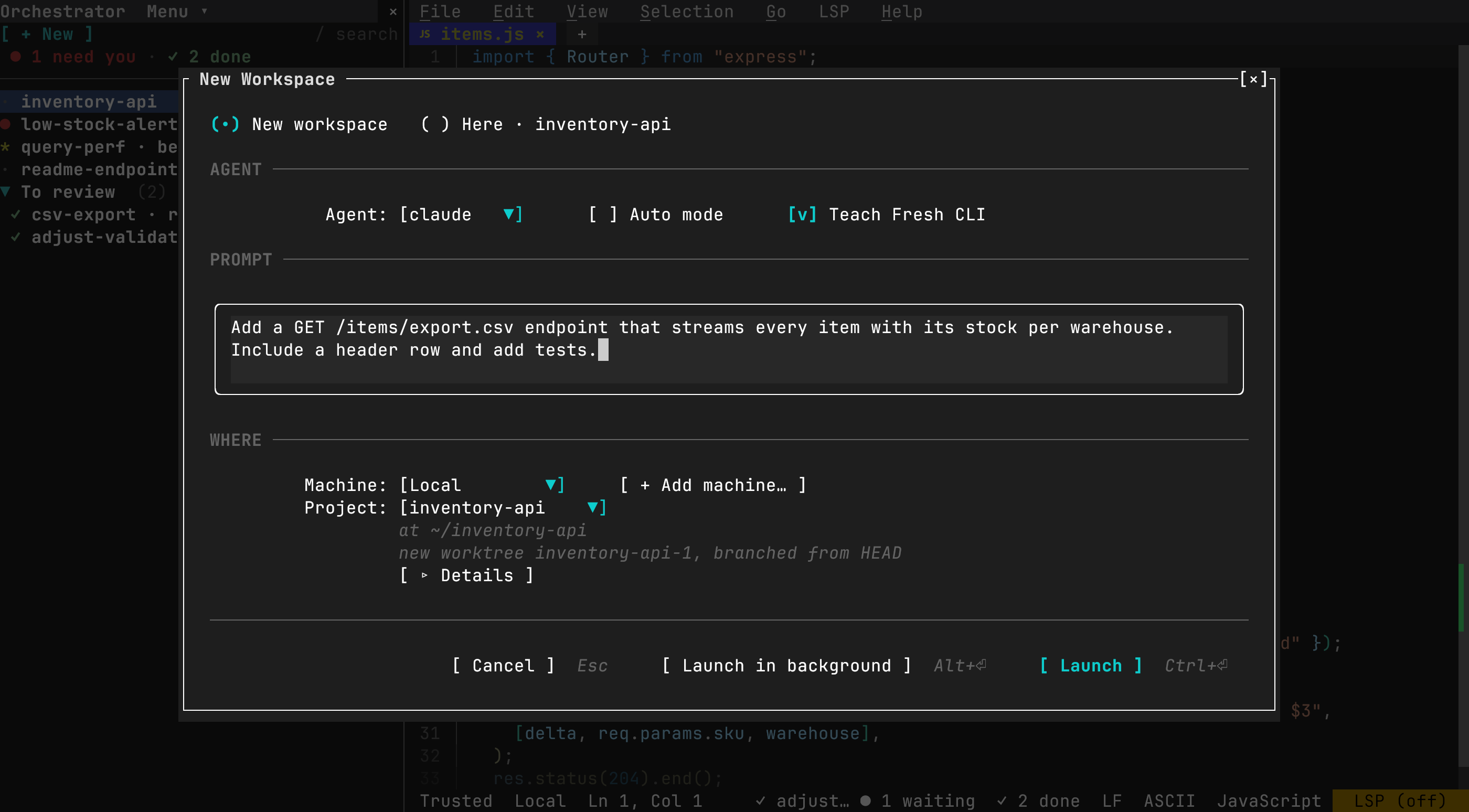
Then choose:
- Launch (
Ctrl+Enter) creates the workspace and switches to it. - Launch in background (
Alt+Enter) creates it without taking you away from what you are doing. It appears in the dock, and you switch to it when the agent needs you.
A new workspace shows up in the dock straight away, with its progress while the worktree is created. If creating it fails, the row says why and offers Retry.
A switch at the top of the dialog starts the agent Here, in the current workspace, instead of a new one; Run Agent… opens the same dialog. See Scripting the Editor for what an agent started this way can do.
When you are done with a workspace, its row menu can Archive it or Delete it; both ask first. Archive stops it and sets its worktree aside, and a script can bring it back (see Scripting the Editor). Delete lets you choose whether its worktree goes too; the branch is always kept.
Projects and machines
Orchestrator: Projects keeps the list of things you work on: git repositories (added from a URL or from a folder) and plain folders. For each machine, a project has one main clone, and new worktrees are made from it. The New Workspace dialog fills in paths from this list, so you rarely type one. Launching a project on a machine where it isn't yet asks whether it is already there or should be cloned.
Orchestrator: Machines (also Menu ▾ → Machines…) lists the remote machines you have added for workspaces to run on, besides this one (Local, always available). Use Add machine… to add one, and Test connection in its dialog to check it; the list points out hosts in your ~/.ssh/config that you haven't added yet. A workspace on a remote machine edits files, runs terminals and language servers on that host, as described in Remote Editing (SSH); local and remote workspaces sit side by side in the same dock. The first connection to an unknown host asks you to confirm its host key.
If a remote host can't be reached when you switch to its workspace, you land in an empty workspace marked Disconnected, with the reason. Nothing is lost: the workspace comes back as soon as the host can be reached. Fresh keeps trying in the background, and you can also choose Reconnect from the remote indicator in the status bar, or switch to the workspace again to retry.
When a project's folder has moved
If a project's folder was moved, renamed or deleted, the New Workspace dialog says so ("This folder doesn't exist — it may have been moved, renamed or deleted") instead of opening somewhere else. Click Change… to point the project at its new location.
Agents started outside Fresh
Claude Code and Codex sessions you started elsewhere (in another terminal, in Claude Desktop or an editor extension, or in the cloud) are listed in the dock under their own groups. The Claude ones are off until you ask for them: tick Claude sessions on this machine and Claude cloud sessions under Menu ▾ → Show (the choice is saved). From a session's right-click menu you can open it as a workspace, open it where it runs (in the browser or Claude Desktop), fork a cloud session into a workspace here, or file it into a folder.
Menu ▾ → Import sessions… goes further back: pick a machine and choose Scan to find sessions other tools have run there, such as Claude Code and Codex transcripts and tmux panes, grouped by project. Choose one and Import opens the New Workspace dialog filled in to resume it.
The dock at start-up
The dock is closed the first time you run Fresh. After that, it remembers whether you last opened or closed it, and starts the same way. To change this, open Settings and find Auto Open Dock on the Plugins → orchestrator page. The same page sets the dock's starting view (Default View), whether empty workspaces and all worktrees are shown by default, and how background workspaces notify you.
fresh FILE and fresh --simple never open the dock; it stays available from the View menu.
See also
- Workboard: every workspace and agent on one full-screen board, sorted by what needs you.
- Daemon Mode: the background editor the workspaces run in, and how a bare
freshattaches to it. - Scripting the Editor: create, move and tidy up workspaces from a script or from an agent.
- Remote Editing (SSH): how remote workspaces work.