
Keyboard Config
Many OSes, window managers and terminal applications capture keys and filter them out so that applications like Fresh, running in the terminal, don't actually have a chance to handle those keys.
Linux: XFCE window manager Ctrl + Alt + Up/Down keys - Disabling Workspace Switching Shortcuts
Follow these steps to clear the Ctrl + Alt + Up and Ctrl + Alt + Down shortcuts:
Step-by-Step Instructions
- Open Settings: Open the XFCE Application Menu and go to Settings > Window Manager.
- Navigate to Keyboard: Click on the Keyboard tab.
- Find Workspace Shortcuts: Scroll through the list of actions to find:
Upper workspaceBottom workspace
- Clear First Shortcut (Up):
- Select the row for Upper workspace (usually mapped to
Ctrl+Alt+Up). - Click the Clear button (or double-click the row and press Backspace).
- Select the row for Upper workspace (usually mapped to
- Clear Second Shortcut (Down):
- Select the row for Bottom workspace (usually mapped to
Ctrl+Alt+Down). - Click the Clear button.
- Select the row for Bottom workspace (usually mapped to
- Close: Click Close to save the changes.
Configuration Summary
| Action | Default Shortcut | New Setting |
|---|---|---|
| Upper workspace | Ctrl + Alt + Up | Cleared / None |
| Bottom workspace | Ctrl + Alt + Down | Cleared / None |
Note: If you still experience issues, check Settings > Keyboard > Application Shortcuts to ensure no custom commands are overriding these keys.
macOS Terminal Tips
TL;DR: Recommended Terminals
- Kitty: Best experience out of the box. Add
macos_option_as_alt leftto config. - Ghostty: Best experience out of the box. Add
macos-option-as-alt = leftto config. - Terminal.app: Import Fresh.terminal profile to fix keybindings.
- iTerm2: Follow the configuration instructions below.
Using the macOS Keymap
Fresh includes a dedicated macOS keymap that addresses terminal-specific challenges. To use it, add to your ~/.config/fresh/config.json:
{
  "keymap": "macos"
}
The macOS keymap is designed around these constraints:
Ctrl+Shift combinations don't work. Some macOS terminals cannot reliably send Ctrl+Shift sequences. For example, Ctrl+Shift+Z produces a caron character (ˇ) instead of being recognized as a key chord. The macOS keymap uses Ctrl+Alt as an alternative modifier.
Some Ctrl keys are ASCII control characters. In terminal protocols, Ctrl+J is Line Feed (newline), Ctrl+M is Carriage Return (Enter), Ctrl+I is Tab, and Ctrl+H is Backspace. Binding actions to these keys causes erratic behavior. The macOS keymap avoids these collisions. This is also why find-and-replace is on Ctrl+R rather than Ctrl+H: most terminals transmit Ctrl+H as Backspace, so Fresh treats it as Ctrl+Backspace (delete previous word) in every keymap.
International keyboards use Alt for essential characters. On German, French, and other ISO layouts, Alt (Option) combined with letters produces characters like @, [, ], {, and }. The macOS keymap avoids Alt+letter combinations that would block character input.
Unix readline conventions are preserved. Terminal users expect Ctrl+Y to "yank" (paste from the kill ring), Ctrl+K to kill to end of line, and Ctrl+U to kill to start of line. The macOS keymap respects these conventions rather than overriding them with GUI editor shortcuts.
Use the Command Palette (Ctrl+P) or run Show Keyboard Shortcuts from it to discover the actual key bindings, or view the keymap file directly at keymaps/macos.json.
Recommended Terminal Emulators
For the best experience with Fresh on macOS, use a terminal that supports the Kitty Keyboard Protocol (KKP) or CSI u for unambiguous key reporting:
| Terminal | KKP Support | Notes |
|---|---|---|
| Kitty | Full | Set macos_option_as_alt left in config |
| Ghostty | Full | Set macos-option-as-alt = left in config |
| iTerm2 | CSI u | Requires configuration (see below) |
| Terminal.app | None | Requires manual key mappings (see below) |
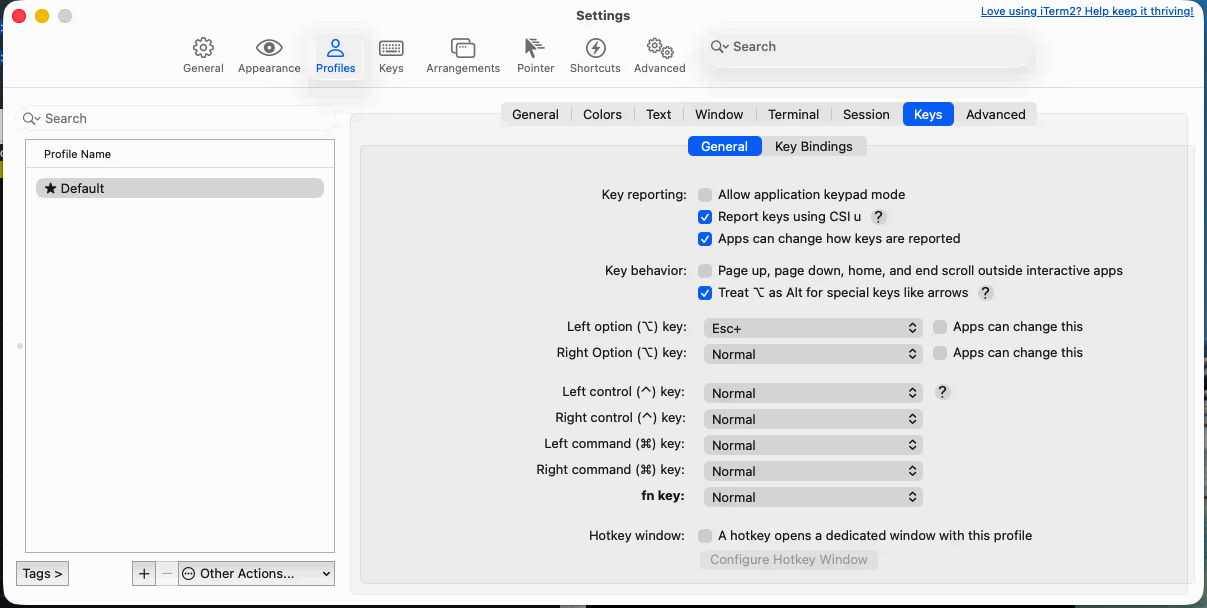
iTerm2 Setup
Enable CSI u support and configure the Option key:
- Go to Settings > Profiles > Keys.
- General tab:
- Check Report keys using CSI u. This allows Fresh to distinguish between combinations like
Ctrl+IandTab. - Set Left Option key to Esc+. This treats the Option key as Meta/Alt.
- Set Right Option key to Normal if you use it for special characters (or Esc+ if you want it as Alt too).
- Check Report keys using CSI u. This allows Fresh to distinguish between combinations like
Apple Terminal.app Setup
Apple's built-in Terminal requires manual configuration for proper key reporting.
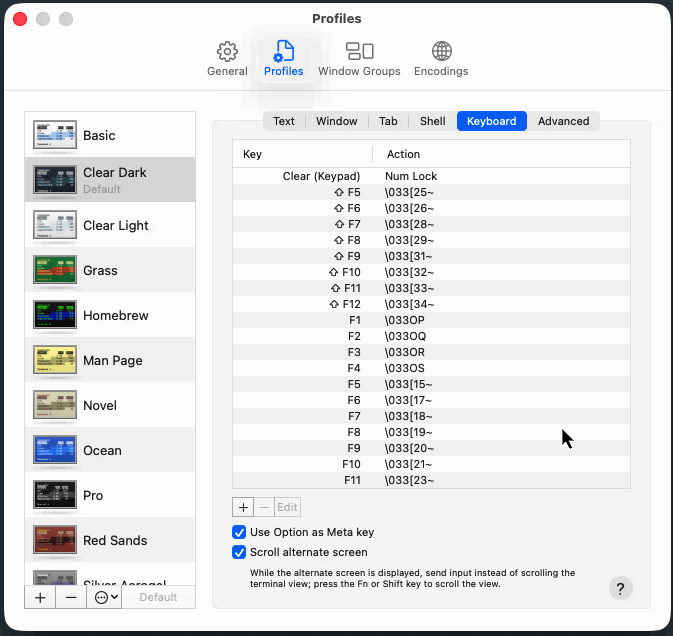
Option as Meta:
- Go to Settings > Profiles > Keyboard.
- Check Use Option as Meta key.
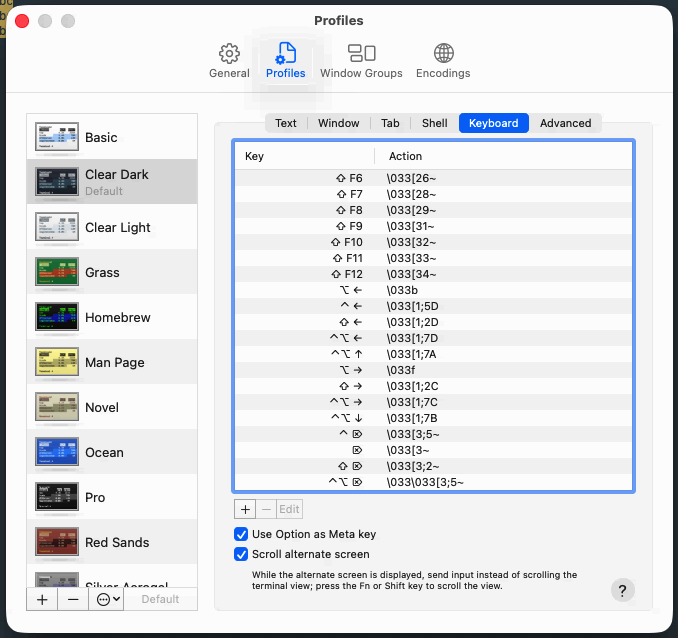
Key Mappings: Fresh relies on Shift+Arrow keys for selection, but Terminal.app often doesn't send these by default.
Easier Method: Import Profile We provide a pre-configured profile that sets up colors and key mappings for you.
- Locate
scripts/macOS/Fresh.terminalin the repository. - In Terminal.app, go to Settings > Profiles.
- Click the gear icon at the bottom of the sidebar and select Import....
- Select the
Fresh.terminalfile.
Manual Configuration: If you prefer to configure it manually:
- In Settings > Profiles > Keyboard, click the
+button. - Map Shift + Cursor Up to send text
\033[1;2A(press Esc then type[1;2A). - Map Shift + Cursor Down to send text
\033[1;2B.
The full list of keys:
Control + Option
Up: \033[1;7A
Down: \033[1;7B
Right: \033[1;7C
Left: \033[1;7D
Control + Shift
Up: \033[1;6A
Down: \033[1;6B
Right: \033[1;6C
Left: \033[1;6D
Shift
Up: \033[1;2A
Down: \033[1;2B
Right: \033[1;2C
Left: \033[1;2D
Keyboard Enhancement Flags
Fresh can use the Kitty Keyboard Protocol to get more accurate key reporting from supported terminals. You can configure which features to enable in your config file:
{
  "editor": {
    "keyboard_disambiguate_escape_codes": true,
    "keyboard_report_event_types": false,
    "keyboard_report_alternate_keys": true,
    "keyboard_report_all_keys_as_escape_codes": false
  }
}| Option | Default | Description |
|---|---|---|
keyboard_disambiguate_escape_codes | true | Use CSI-u sequences for unambiguous escape/modifier key reading |
keyboard_report_event_types | false | Report key repeat and release events (not just press) |
keyboard_report_alternate_keys | true | Send alternate keycodes in addition to base keycodes |
keyboard_report_all_keys_as_escape_codes | false | Report all keys (including plain text) as escape sequences |
These flags only take effect if your terminal supports the Kitty Keyboard Protocol. Fresh detects support automatically and falls back if unavailable. If you experience keyboard issues, try disabling all flags by setting them to false.
Home and End Keys
On macOS, the Home and End keys scroll the terminal buffer by default instead of moving the cursor. Fresh's macOS keymap works around this by binding:
- Ctrl+A → Move to line start
- Ctrl+E → Move to line end
- Ctrl+Shift+A → Select to line start
- Ctrl+Shift+E → Select to line end
If you prefer using the actual Home/End keys, configure your terminal to send the proper escape sequences:
iTerm2:
- Preferences → Profiles → Keys → Key Mappings
- Add: Home → Send Escape Sequence →
[H - Add: End → Send Escape Sequence →
[F
Mission Control Conflicts
macOS uses Ctrl+Arrow keys for Mission Control desktop switching by default, which prevents these shortcuts from reaching terminal applications.
To use Ctrl+Arrow in Fresh for word movement or multi-cursor:
- Open System Settings → Keyboard → Keyboard Shortcuts → Mission Control
- Disable or rebind:
- "Move left a space" (Ctrl+Left)
- "Move right a space" (Ctrl+Right)
- "Mission Control" (Ctrl+Up)
- "Application windows" (Ctrl+Down)
Alternatively, Fresh's macOS keymap provides Alt+Arrow as the primary word movement binding, which doesn't conflict with Mission Control.
Option Key on International Keyboards
If you use Option to type special characters (like @ on German layouts), you should configure your terminal to treat only the Left Option as Meta/Alt, and keep the Right Option for character input. iTerm2 supports this configuration (see above).
International Keyboard Layouts
The macOS keymap disables Alt+0-9 bindings because these key combinations are used to type essential characters on many international keyboard layouts:
- German: Alt+L = @, Alt+5 = [, Alt+6 = ]
- French: Alt+( =
- Spanish: Alt+2 = @, Alt+3 = #
If you find that certain Alt combinations insert characters instead of triggering editor commands, ensure your terminal's Option key is configured as Meta (see above).
Key Names
The key field of a binding takes one of the names below.
This section is generated from the key tables in the source. Edit those, not this text — see crates/fresh-editor/tests/key_name_docs.rs.
Named keys
| Name | Key |
|---|---|
enter | Enter |
backspace | Backspace |
delete, del | Delete |
insert, ins | Insert |
tab | Tab |
backtab | BackTab |
escape, esc | Esc |
space | the space bar |
left | Left |
right | Right |
up | Up |
down | Down |
home | Home |
end | End |
pageup | PageUp |
pagedown | PageDown |
capslock | CapsLock |
scrolllock | ScrollLock |
numlock | NumLock |
printscreen | PrintScreen |
pause | Pause |
menu | Menu |
Any single character is also a key name — "a", "7", "é" — as is a function key, "f1" through "f35" (F13 and up need a terminal that reports them). Names are case-insensitive.
Punctuation
The single character is always accepted and is what the keybinding editor writes back. These X11 keysym spellings are accepted too, for the keys that are awkward to write literally in JSON.
| Name | Character |
|---|---|
asterisk, star | * |
plus | + |
minus, hyphen | - |
slash | / |
period, dot | . |
equal, equals | = |
backslash | \ |
comma | , |
semicolon | ; |
colon | : |
apostrophe, quote | ' |
quotedbl, doublequote | " |
grave, backtick | ` |
tilde | ~ |
exclam, exclamation | ! |
at | @ |
numbersign, hash | # |
dollar | $ |
percent | % |
asciicircum, caret | ^ |
ampersand | & |
underscore | _ |
bar, pipe | | |
question | ? |
less, lessthan | < |
greater, greaterthan | > |
parenleft | ( |
parenright | ) |
bracketleft | [ |
bracketright | ] |
braceleft | { |
braceright | } |
Numeric keypad
These are aliases, not separate keys. A terminal reports the keypad using the same code as the main keyboard, so binding kp_multiply also binds *, and binding kp_enter also binds Enter. There is no way to tell the two apart at this layer. kp_begin — the 5 key with Num Lock off — is the one exception: nothing on the main keyboard sends it.
| Name | Binds the same key as |
|---|---|
kp_0 | 0 |
kp_1 | 1 |
kp_2 | 2 |
kp_3 | 3 |
kp_4 | 4 |
kp_5 | 5 |
kp_6 | 6 |
kp_7 | 7 |
kp_8 | 8 |
kp_9 | 9 |
kp_decimal | . |
kp_divide | / |
kp_multiply | * |
kp_subtract | - |
kp_add | + |
kp_enter | Enter |
kp_equal | = |
kp_separator | , |
kp_left | Left |
kp_right | Right |
kp_up | Up |
kp_down | Down |
kp_page_up | PageUp |
kp_page_down | PageDown |
kp_home | Home |
kp_end | End |
kp_insert | Insert |
kp_delete | Delete |
kp_begin | KeypadBegin |
Media and modifier keys
Reported only by a terminal speaking the kitty keyboard protocol, and for the modifier keys only when it is asked to report every key event. Unlike the keypad these are not aliases: nothing on the main keyboard means volume_mute or left_hyper, so each binds a key of its own.
| Name | Key |
|---|---|
media_play | Media(Play) |
media_pause | Media(Pause) |
media_play_pause | Media(PlayPause) |
media_reverse | Media(Reverse) |
media_stop | Media(Stop) |
media_fast_forward | Media(FastForward) |
media_rewind | Media(Rewind) |
media_next | Media(TrackNext) |
media_previous | Media(TrackPrevious) |
media_record | Media(Record) |
volume_down | Media(LowerVolume) |
volume_up | Media(RaiseVolume) |
volume_mute | Media(MuteVolume) |
left_shift | Modifier(LeftShift) |
left_ctrl | Modifier(LeftControl) |
left_alt | Modifier(LeftAlt) |
left_super | Modifier(LeftSuper) |
left_hyper | Modifier(LeftHyper) |
left_meta | Modifier(LeftMeta) |
right_shift | Modifier(RightShift) |
right_ctrl | Modifier(RightControl) |
right_alt | Modifier(RightAlt) |
right_super | Modifier(RightSuper) |
right_hyper | Modifier(RightHyper) |
right_meta | Modifier(RightMeta) |
iso_level3_shift | Modifier(IsoLevel3Shift) |
iso_level5_shift | Modifier(IsoLevel5Shift) |
Chord (Multi-Key) Bindings
A binding can be a sequence of key presses instead of a single combination — the emacs keymap's C-x C-s for save, or M-g g for go-to-line. In config.json, a chord uses keys (an array of key presses) in place of key/modifiers:
{
  "keybindings": [
    {
      "keys": [
        { "key": "x", "modifiers": ["ctrl"] },
        { "key": "l", "modifiers": [] }
      ],
      "action": "goto_line",
      "when": "normal"
    }
  ]
}
Each entry in keys takes the same key and modifiers as a single-key binding. After the first key is pressed the editor waits for the rest of the sequence; a key that doesn't continue any chord ends it.
A few rules worth knowing:
- Your bindings win. A single-key binding you add outranks any built-in chord that starts with the same key, so binding
Alt+Gon the emacs keymap fires even though the keymap hasAlt+G G. Only a chord you wrote yourself keeps its prefix over your own single-key binding. - Removing a chord frees its first key. Delete (
d) a keymap chord in the keybinding editor — or write"action": "unbind"with the samekeysinconfig.json— and once no live chord starts with that key, it is free to bind on its own. - The keybinding editor lists, edits, deletes and disables chords, but can't record a new one yet — its key field captures a single combination, so write new chords in
config.jsonby hand. Recording sequences in the editor is tracked in #3173.
See the keybinding editor page for the full binding format, contexts, and the difference between removing and disabling a binding.
Debugging Keyboard Issues
If keybindings aren't working as expected, use Help → Debug Keyboard Events to see exactly what your terminal sends. See Troubleshooting: Debug Keyboard Events for details.