
Guided Code Tours
Palette:
Tour: Open Workspace Tour...,Tour: Load Definition...CLI:
fresh --cmd help tourfor the authoring guide
A tour is a walkthrough of a codebase, played inside the editor. It opens as a panel below your code: the list of steps on the left, the current step's explanation on the right. Each step points at a piece of code, and moving to a step opens that file above the panel, scrolls to the right place and highlights it — so the code being talked about is on screen while you read about it.
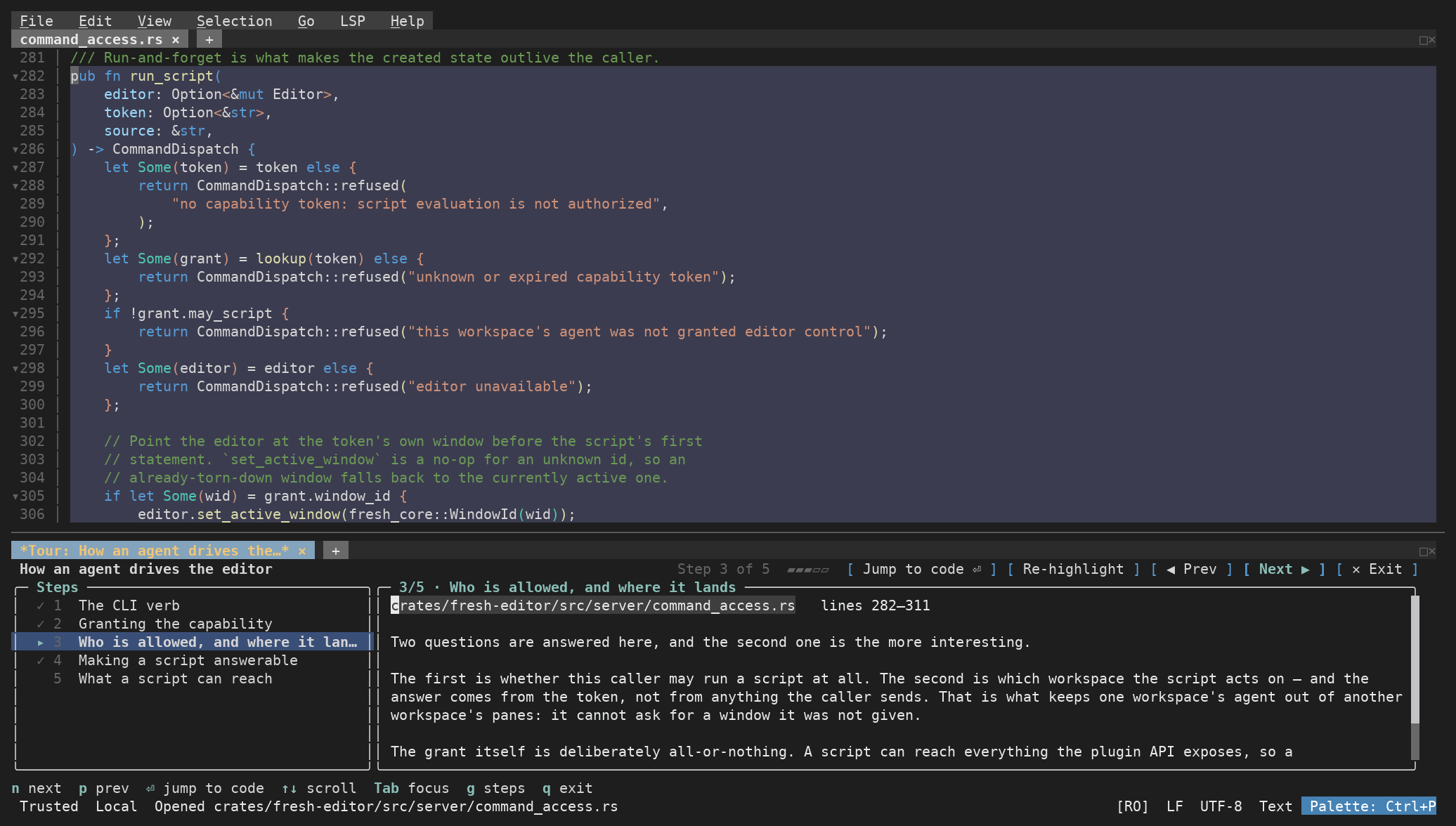
Step 3 of 5 of a tour of Fresh's own source. The step's lines are highlighted above; the rail on the left ticks off the steps already visited.
Where tours come from
A tour is a small JSON file. A title, a description, and a list of steps — each step a file, a line range, and the prose that explains it:
{
  "title": "Request pipeline",
  "description": "How a request reaches the handler",
  "schema_version": "1.0",
  "steps": [
    {
      "step_id": 1,
      "title": "Entry point",
      "file_path": "src/main.rs",
      "lines": [1, 40],
      "explanation": "## Where it starts\n\nThe listener is built here."
    }
  ]
}
fresh --cmd help tour prints the rest: every field, which are required, and where tours are conventionally kept. The reference is generated from the format the build you are running actually validates against, so it cannot go stale.
You can write one by hand, but the recommendation is not to. LLMs and coding agents are very good at producing these on demand, and asking takes a sentence — point them at that guide and they have everything they need:
"Give me a tour of the changes on this branch — start at the entry point and walk through what changed and why. Check
fresh --cmd help tourfor the manifest format."
"I have never read the scheduler. Build me a tour of it, ten steps, focused on how a job gets picked up. Check
fresh --cmd help tourfor the format, then write the manifest and open it."
That last clause matters more than it looks: with it, an agent that has never seen Fresh reads the guide and gets the format right first time. Without it, it is guessing.
An agent running in your workspace can write the tour and open it, so it appears in your panel without you touching a file — see Scripting the Editor.
Generating a tour on the spot rather than maintaining one has two advantages. It is current, because it is written against the code as it is now rather than as it was when someone last updated the file. And it is written for whoever asked: you can ask for more or less detail, for a focus on the parts you do not know, or for a tour of only the code a particular change touched.
Tours that pay off repeatedly are worth keeping — an onboarding tour of the main request path, an architecture tour that ships with the repository. Check those into source control like any other file; a manifest at the project root, or a .tours directory for a set of them, are the conventional homes, and are also where the CodeTour extension puts its own. Both routes produce the same thing.
What tours are good for
- Reviewing a pull request. A diff tells you what changed. A tour of the change tells you why, in the order that makes sense, with each part shown in its real surroundings instead of three lines of context.
- Onboarding onto a codebase, or onto a corner of one you have not worked in. A tour is a reading order plus commentary, which is exactly what a new person is missing.
- Explaining your own work to someone else, or to yourself in three months.
- Bug reports and incident write-ups — walk the code path that failed.
Opening one
Ask for a tour from the command palette and Fresh opens a file browser at the project root, with hidden files shown — tours are dotfiles, so that is where they are. Pick the one you want.
It deliberately does not pick for you. A repository can hold several tours, and opening a guess is worse than one more keystroke.
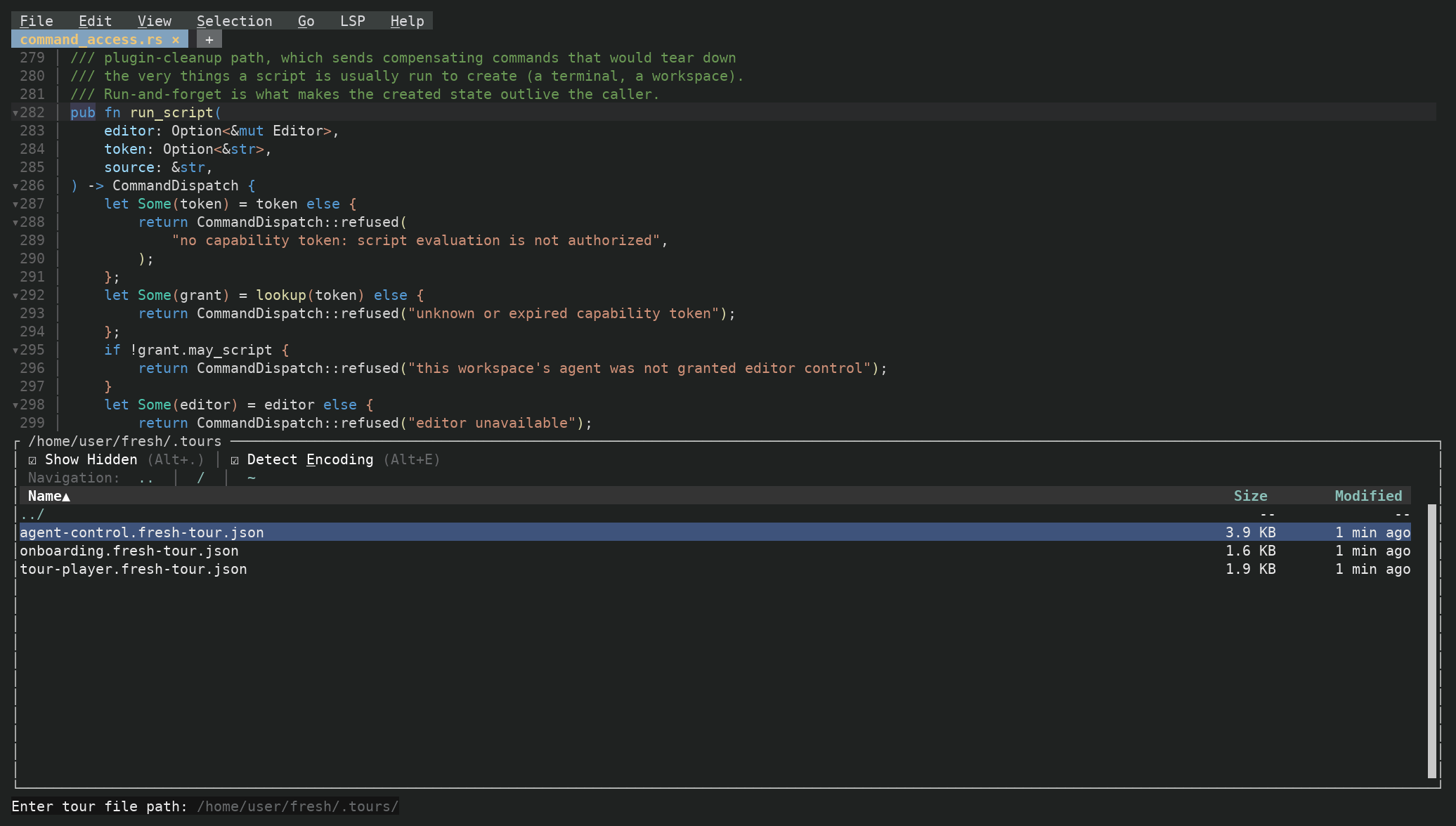
Hidden files are shown for you, so the manifests are one keystroke away wherever the project keeps them.
Moving through a tour
Step forward and back from the panel, or from the code you are reading without leaving it, or by clicking any step in the list to jump straight there. Every time the step changes, the file opens and the range highlights.
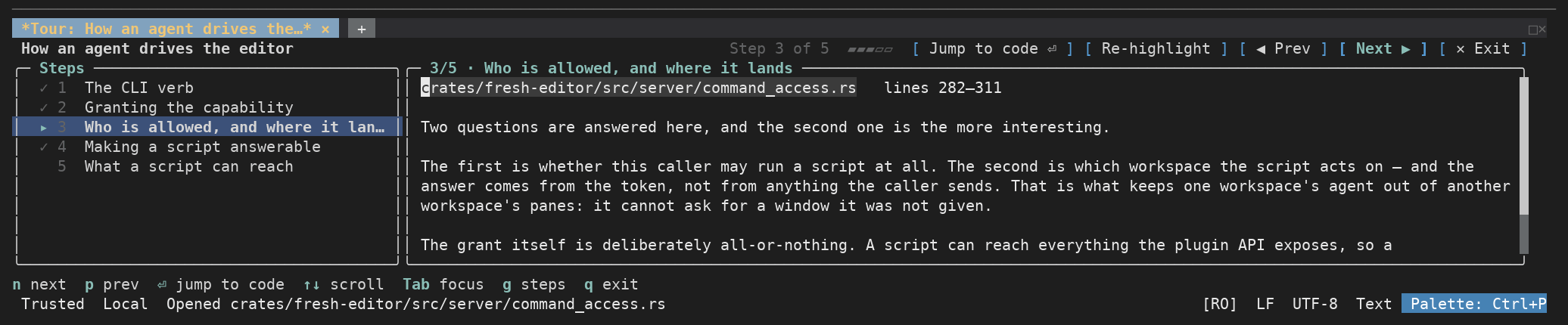
The panel shows what each key does along the bottom, so there is nothing to memorise — open a tour and the controls are in front of you. Explanations are rendered markdown, so headings, lists, emphasis and links come out as written, and you can select and copy the text.
The files it opens are just files
Everything a tour opens is an ordinary buffer. Nothing is locked and nothing is special-cased.
- Navigate with your language server — go to definition, find references, hover — straight from a step.
- Edit and save. Fixing a typo you spotted mid-tour does not end the tour.
- Open other files, run a search, go and read something else entirely. The panel stays where it is.
- Come back whenever you like and carry on from the step you were on.
The tour lives in its own buffer, so you can close it like any other and reopen it later. Several tours can be open at once, which is what you want when a tour of a change refers to a tour of the thing it changes. An unfinished tour comes back the next time you start the editor; closing one forgets it.
When the code has moved on
A tour is written against a state of a repository, and repositories move. If a tour records the commit it was written for and you are somewhere else, the panel says so, and the tour still plays. If a step's file is gone, the panel says that too and the step's text stays readable. You can also re-apply a step's highlight after editing the file underneath it.
This is the other argument for generating tours on demand: one produced ten seconds ago has nothing to drift from.
VS Code CodeTour files
Tours in the CodeTour format play in Fresh as well. The format is detected from the file, so there is nothing to convert and nothing to configure — point Fresh at an existing .tour file and it plays.
See also
- Scripting the Editor — how a script or an agent writes and opens a tour for you
- Git — reviewing diffs and hunks
- LSP Integration — navigation from inside a tour step
- Navigation